 WiseGoal
WiseGoal is coming soon to iPhone. This guide shows how the app works ahead of launch.
What WiseGoal reads from Apple Health
WiseGoal can read steps, body weight and completed workouts from Apple Health when you enable the connection and grant access to those categories. It does not write data to Apple Health. You do not need an Apple Watch to use WiseGoal.
Apple Health is optional. You can keep logging movement and measurements manually, whether or not you choose to connect it.
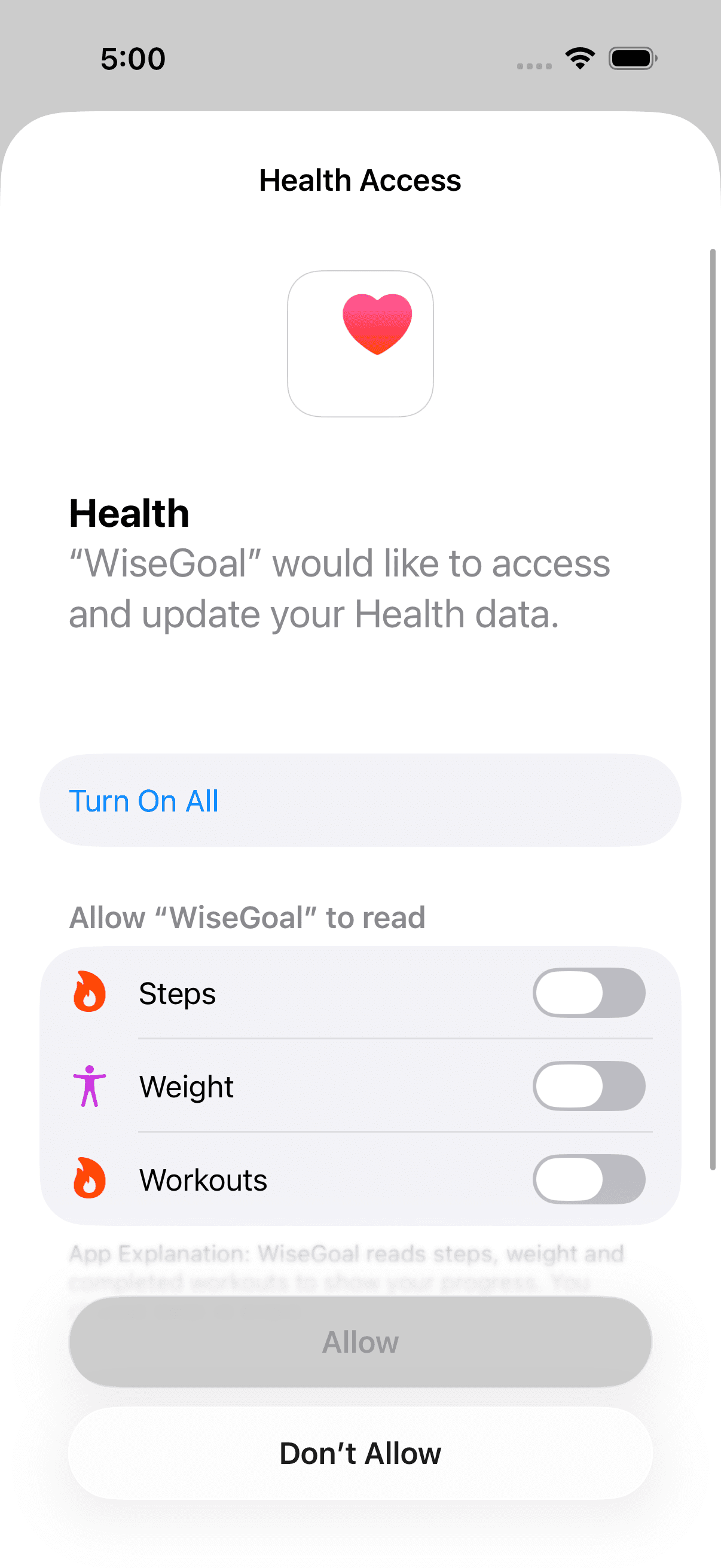
Connect and review your permissions
- Open WiseGoal’s Apple Health settings and start the connection.
- In the iOS Health Access sheet, choose the categories you want WiseGoal to read.
- Return to WiseGoal and refresh Health data to review what was imported.
You can review the permissions again or stop the connection later. Health connection settings apply to this device; signing into your WiseGoal account on another iPhone does not grant Health access there.
How imported data fits your journal
WiseGoal shows Health activity separately from manual daily totals. When you have entered manual steps or cardio, those stay your chosen totals. Imported workouts do not automatically add calories to your food target.
The app refreshes recent activity and can bring imported weight into your journal. Overlapping imported workout intervals are counted once for duration. The weight trends guide explains how recorded weight contributes to your trend.
If Health data is missing
Check that the relevant entries exist in Apple Health and review WiseGoal’s read permissions. An empty result can mean there is no data to read or that access is not allowed; WiseGoal cannot reliably distinguish those situations. Apple documents this behavior in its HealthKit authorization guidance.
Refresh after reviewing permissions. Manual entries remain an option when data is unavailable. For help, contact WiseGoal support; for details on account backup and data handling, read the privacy policy.